Key differences between Oracle P6 and Oracle Primavera Cloud
Oracle Construction & Engineering is here to support you with your organization’s move from Oracle P6 to Oracle Primavera Cloud. We know that it’s a big change, but we'll help make the transition as seamless as possible.
That begins by getting you familiar with Primavera Cloud and your role as an Administrator within the application. Primavera Cloud terminology may be a bit different than what you’re used to in P6. This article covers those differences to help you get off to a good start.
Key differences overview
| P6 | Primavera Cloud | |
|---|---|---|
| Administrator name | Service Administrator | Application Administrator |
| Project organization | Used EPS to organize projects. | Use workspaces to organize projects in a hierarchy. |
| Data | Most enterprise-wide configuration data was global and accessible to all projects. | Enterprise data is referred to as dictionaries. Dictionaries are created at the workspace level, and then shared to child workspaces. |
| Security | Managed via global security profiles. | Typically managed by assigning users to user groups with specific permission sets at the appropriate workspace level. |
| Data organization | Used Layouts to filter, group, and sort information. | Use Views to filter, group, and sort information. |
Administration basics
Let’s begin with the basics.
In P6, you were referred to as the Service Administrator. In Primavera Cloud, this role is known as the Application Administrator.
In Primavera Cloud, you will perform many of your administrator tasks within Global Admin. Here, you’ll manage data and security for your organization In Primavera Cloud.
Project organization
In P6, you used the enterprise project structure (EPS) to organize and group projects according to your organization's preferred structure, such as company division, phase, geography, or project size.
In Primavera Cloud, you'll use workspaces to group and organize projects in a hierarchy. The hierarchy allows you to easily manage data and security across your workspaces, as we'll discuss throughout this article.
Take a look at the hierarchy below.
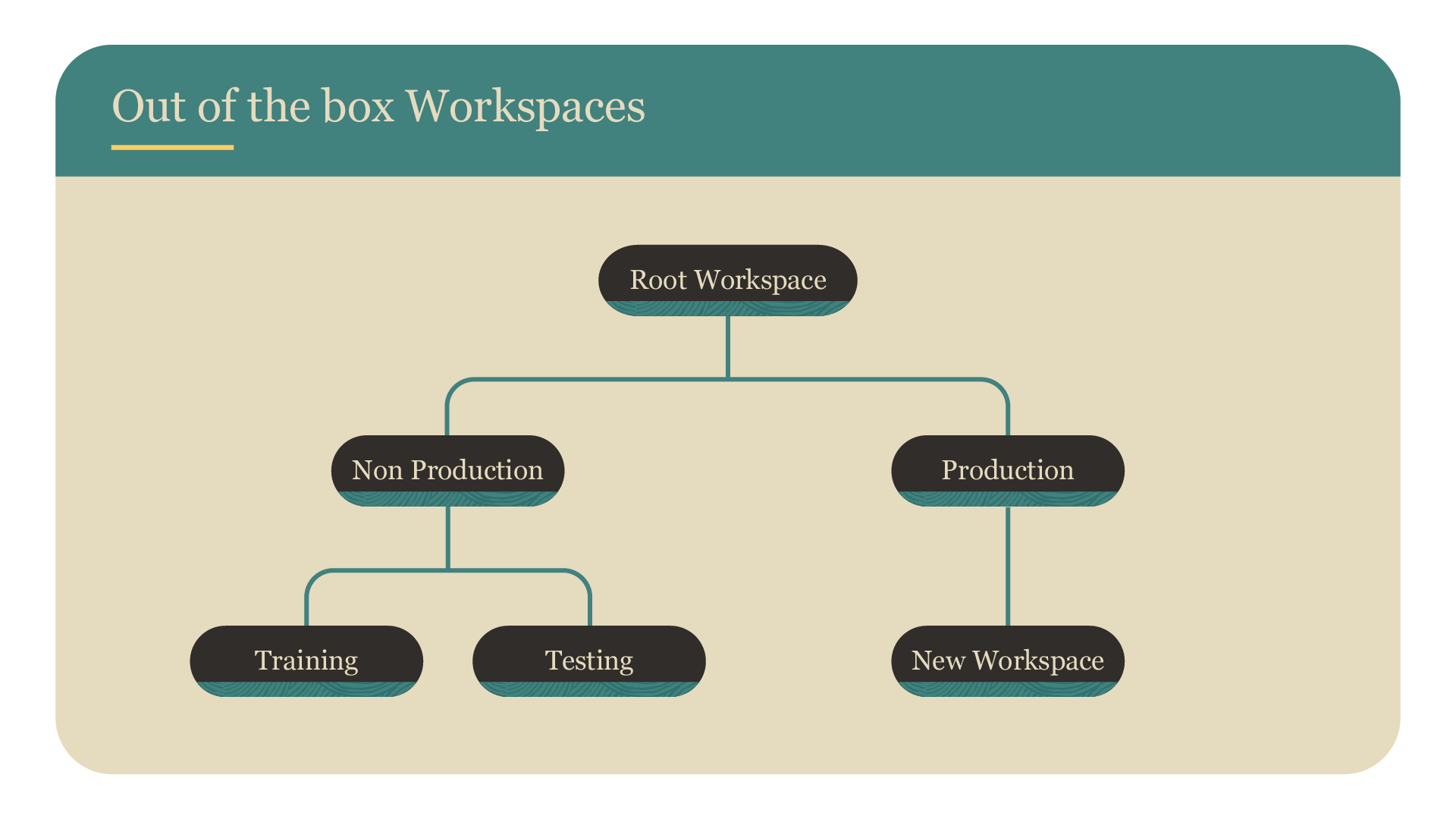
In P6, you could have multiple root nodes of the EPS. In Primavera Cloud, there's just one top level of the workspace, which is referred to as the Root workspace. The Root workspace is typically renamed to your company's name.
Then, there are two workspaces below the Root workspace: Production and Non-Production.
Each subsequent workspace level is known as a child or grandchild workspace, respectively.
It's important to plan your workspace hierarchy carefully, as it's not easy to reorganize after you enter project data. To view best practices for setting up workspaces, see this article.
Data
In P6, most enterprise data, like currencies, baseline types, and resources, is global and accessible to all projects.
Most enterprise data that's available in P6 is available in Primavera Cloud in the form of dictionaries. You'll create dictionaries at the workspace level, and then the data can be automatically or manually shared to child workspaces. This ensures that data is available at the appropriate project level.
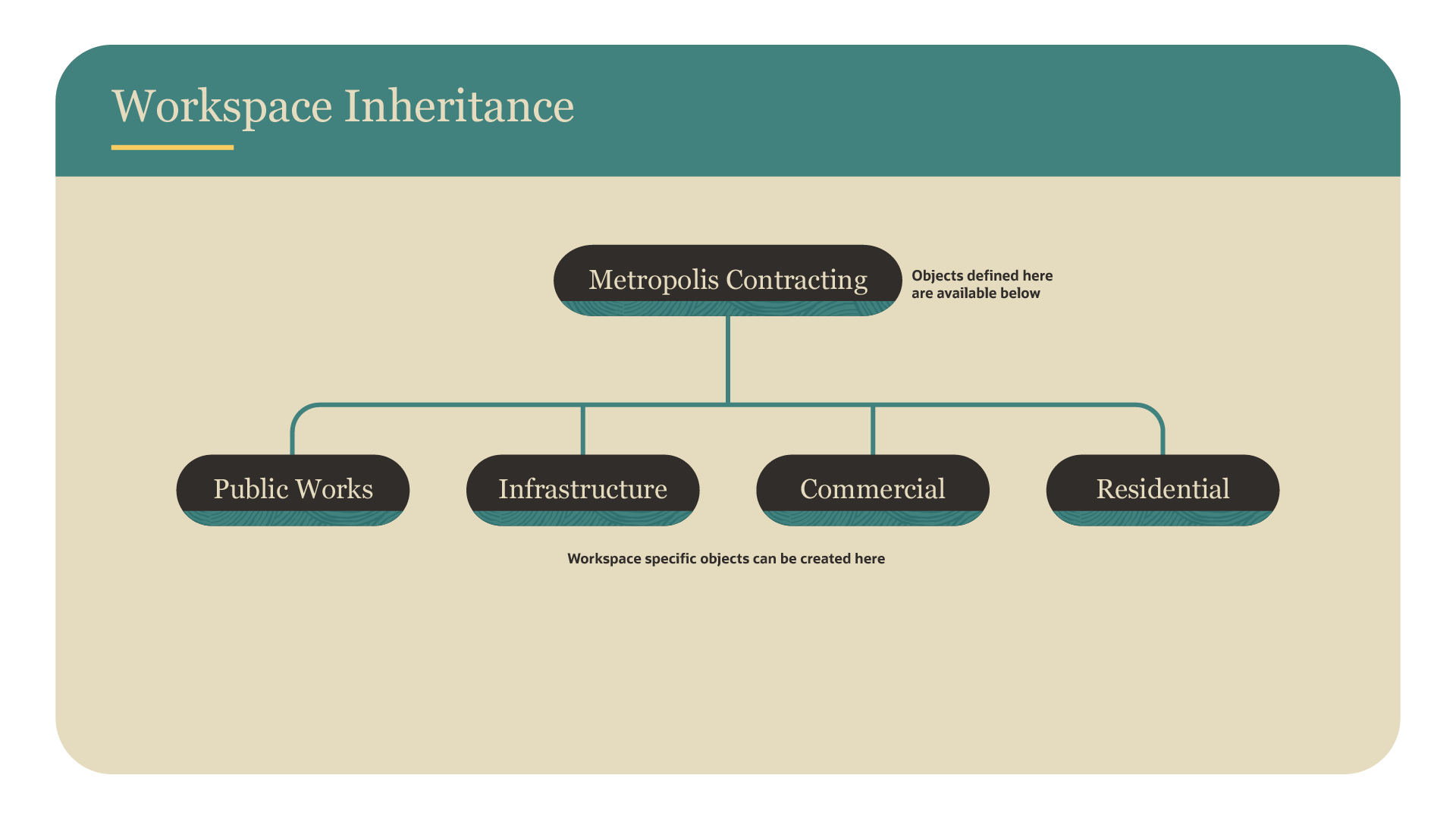
To view best practices for setting up dictionaries, see this this article.
Security
In P6, you managed user access via global security profiles. You assigned users to your organization breakdown structure (OBS), and then assigned OBS elements to each EPS node, project, and work breakdown structure (WBS).
Primavera Cloud takes a different approach. Typically, you'll manage security access by assigning users to user groups with specific permission sets at the appropriate workspace level. Then, users in that and lower workspace levels will be able to access relevant project data. Of course, you can still assign users to specific projects and data, if needed.
Visit this this article for more information.
Data organization
In P6, you used Layouts to filter, group, and sort information. In Primavera Cloud, you'll use Views to accomplish the same thing.
There are four view types in Primavera Cloud:
- Standard: Preinstalled with Primavera Cloud and is only available on the Activities page; contains configured view options
- Workspace: Saved at the workspace level and accessible to all users in the workspace
- Project: Saved at the project level and accessible by other project members
- Personal: Private and only accessible to the user who created them
You can add as many personal, project, or workspace views as you wish in Manage Views. Easily get there by selecting the wrench icon along the upper-right. If pages don't support adding views, you can still see standard view options.
Visit this article to learn how to add and apply views and configure information.